
Domain Whitelist in cPanel and DirectAdmin (Anti-Spam)
Learn how to allow trusted email addresses and domains in cPanel and DirectAdmin to reduce anti-spam false positives.
In this article
Introduction
When messages from a client, supplier or colleague are legitimate but still end up marked as spam, adding them to a whitelist is often the fastest way to reduce false positives.
A whitelist tells the anti-spam filter that you trust a specific address or an entire domain. In this guide you will see how to do it in cPanel and DirectAdmin.
What a whitelist does
A whitelist does not disable all spam protection. It only creates an exception for trusted senders.
Use it carefully:
- For one specific address, such as
billing@company.com - For a whole domain, such as
*@company.com - Only for senders you know and really need to receive
How to add a domain to the whitelist in cPanel
1. Sign in to cPanel
Open your cPanel account from your client area or through the usual hosting access URL.
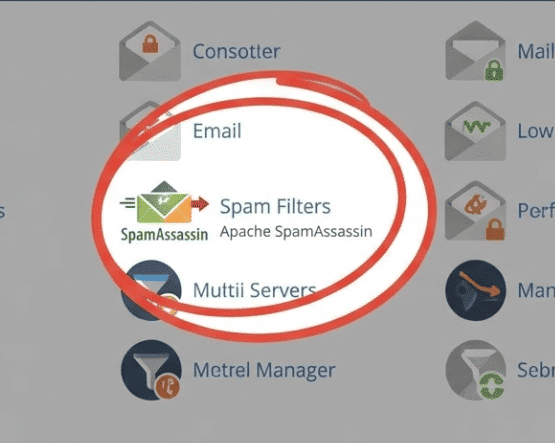
2. Open Spam Filters
Inside the email section, click Spam Filters.
3. Show the advanced options
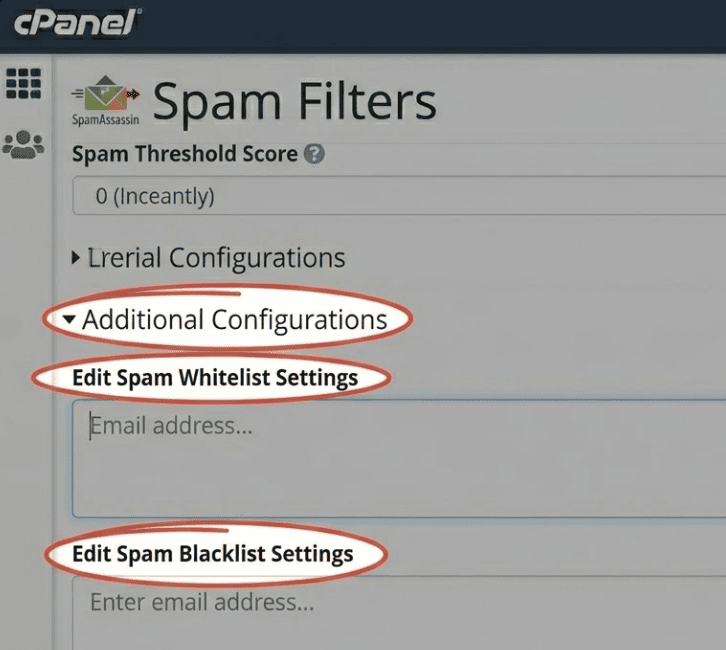
Look for Additional Configurations or Show Additional Configurations and expand that section.
4. Edit the whitelist
Open Edit Spam Whitelist Settings.
5. Add the address or domain
You can allow:
- One specific address:
contact@company.com - A whole domain:
*@company.com
Then save your changes.
How to add a domain to the whitelist in DirectAdmin
1. Sign in to DirectAdmin
Log in with your username and password.
2. Open the anti-spam settings
Look for SpamAssassin Setup or the equivalent spam control section.
3. Find the whitelist area
Inside the mail settings, look for Email Whitelist or a similar allowed senders section.
4. Add the sender
Enter the address or domain you want to allow:
contact@company.com*@company.com
Save the changes to apply the new exception.
Useful tips
-
Start with one specific address
If only one sender is affected, it is safer to allow one exact address before allowing the whole domain.
-
Do not allow full public domains
Avoid entries such as
*@gmail.comor*@outlook.com. They are too broad and reduce your protection. -
Check the spelling carefully
One wrong hyphen, dot or
@sign will stop the rule from matching the real sender. -
Keep the whitelist tidy
Remove senders you no longer need so you do not accumulate unnecessary exceptions.
-
Do not use the whitelist to hide DNS issues
If your own emails go to spam, also review
SPF,DKIMandDMARC.
Frequently asked questions
Can I whitelist only one address instead of a full domain
Yes. In fact, that is the safest option when the issue affects only one sender.
Does a whitelist guarantee delivery every time
Not completely. It helps reduce spam filtering, but other security and reputation factors can still affect delivery.
Is it safe to allow a full domain
If it is a trusted business domain, usually yes. It is not recommended for public or overly broad services.
Conclusion
Setting up a whitelist in cPanel or DirectAdmin is a simple way to prevent valid emails from being marked as spam by mistake.
Use it only for trusted senders, review it from time to time, and always combine it with proper email authentication settings.